How to set up a productivity system in 10 minutes
How to set up a productivity system fast: sign in, capture tasks, aim them at a Direction outcome, and know when Free, Pro, or Unlimited fits.
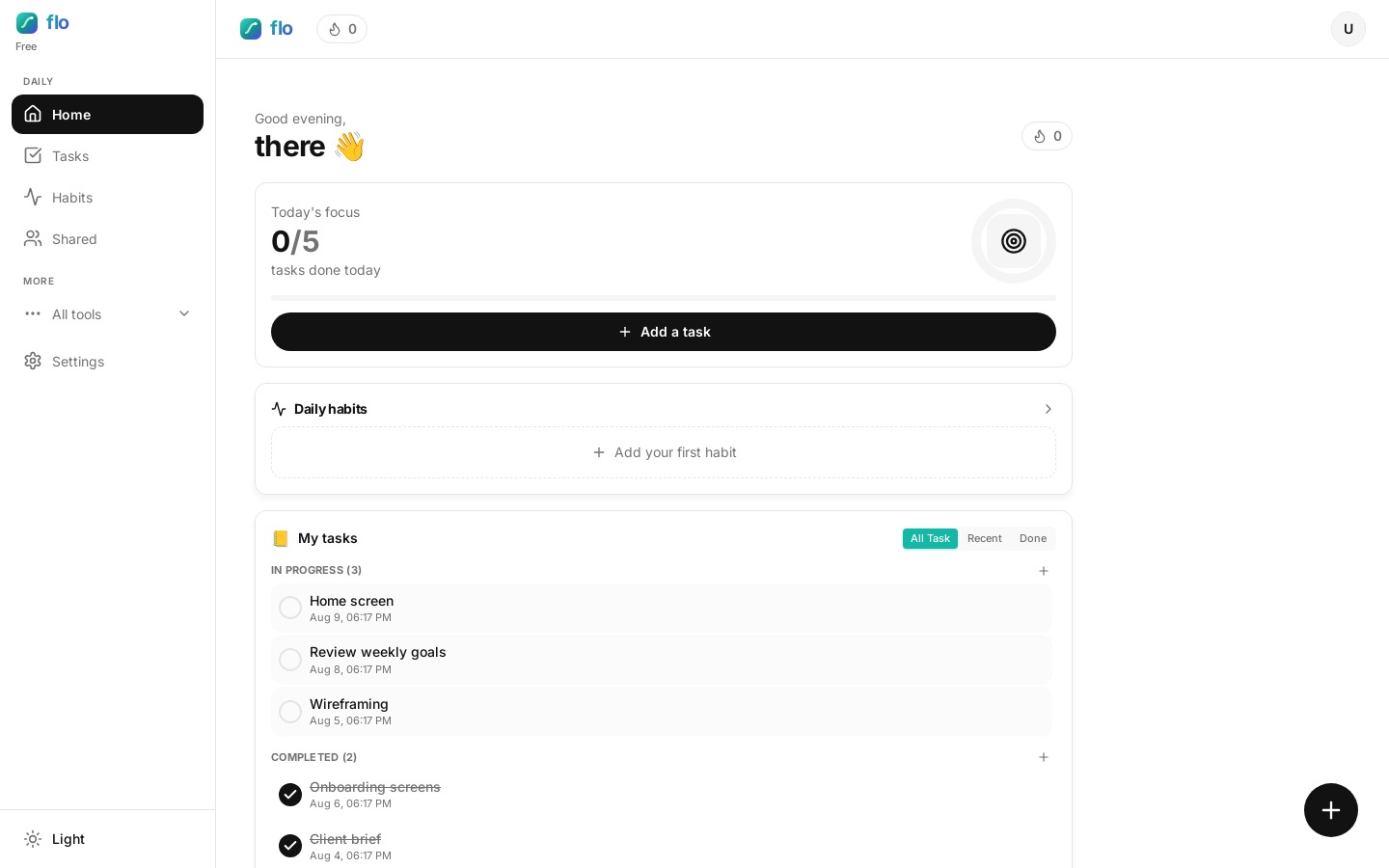
Most people abandon a new to-do app because setup feels like a second job. If you want to know how to set up a productivity system you will actually open tomorrow, start smaller: capture today’s work, point it at one outcome, and ignore the rest until you need it.
This guide is for anyone getting started with a to-do app who wants goals and tasks in one place — not another empty folder tree. flo is built around one idea: today’s work should point at goals you care about. Watch the short tutorial, then follow the steps.
What you’ll set up in 10 minutes
- A Google sign-in and your Home snapshot
- Three short, actionable tasks on the Tasks board
- One Direction outcome that those tasks support
- A sense of whether Free, Pro, or Unlimited fits you
Sign in and land on Home
From the landing page, sign in with Google. flo opens Home with today’s snapshot — active tasks, streaks, and shortcuts into Tasks, Focus, and Assistant. If you arrived from a shared-list invite, you’ll go straight into that list after login. Example: after a client shares a list with you, skip the empty Home tour and land where the work already is.
Capture work in Tasks
Open Tasks and use Quick Add for anything on your mind. Keep titles short and actionable (“Draft outline”, not “Project”). Give each item a priority and optionally a list like Work or Personal. Example: dump “Email Maya”, “Ship pricing page”, and “Buy groceries” in under a minute — then promote only one to High.
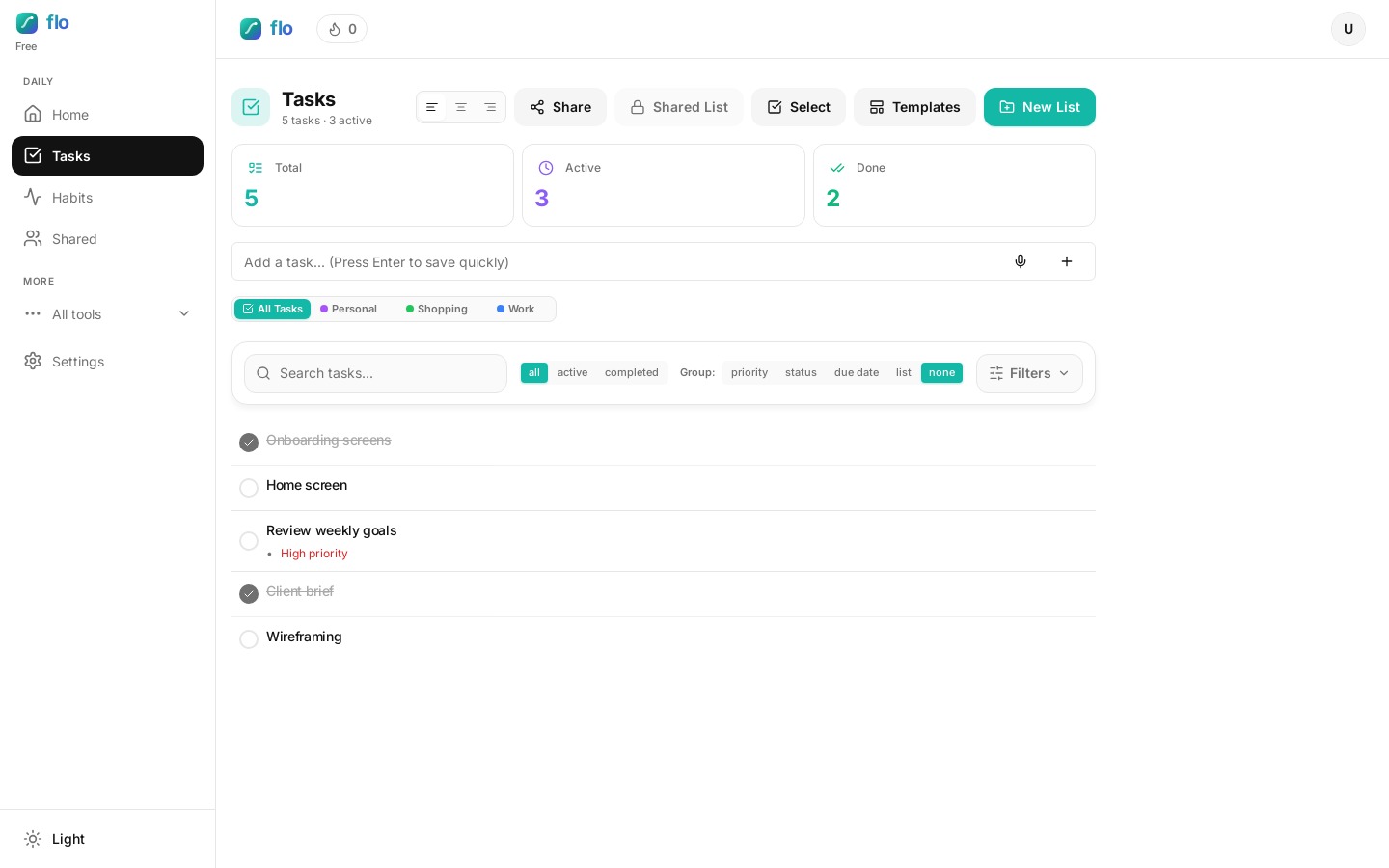
- Cap High priority at a few items per day.
- Use lists as contexts (Work / Personal), not dozens of empty folders.
- Complete with the circle checkbox — flo celebrates lightly and awards XP.
Aim today at a Direction outcome
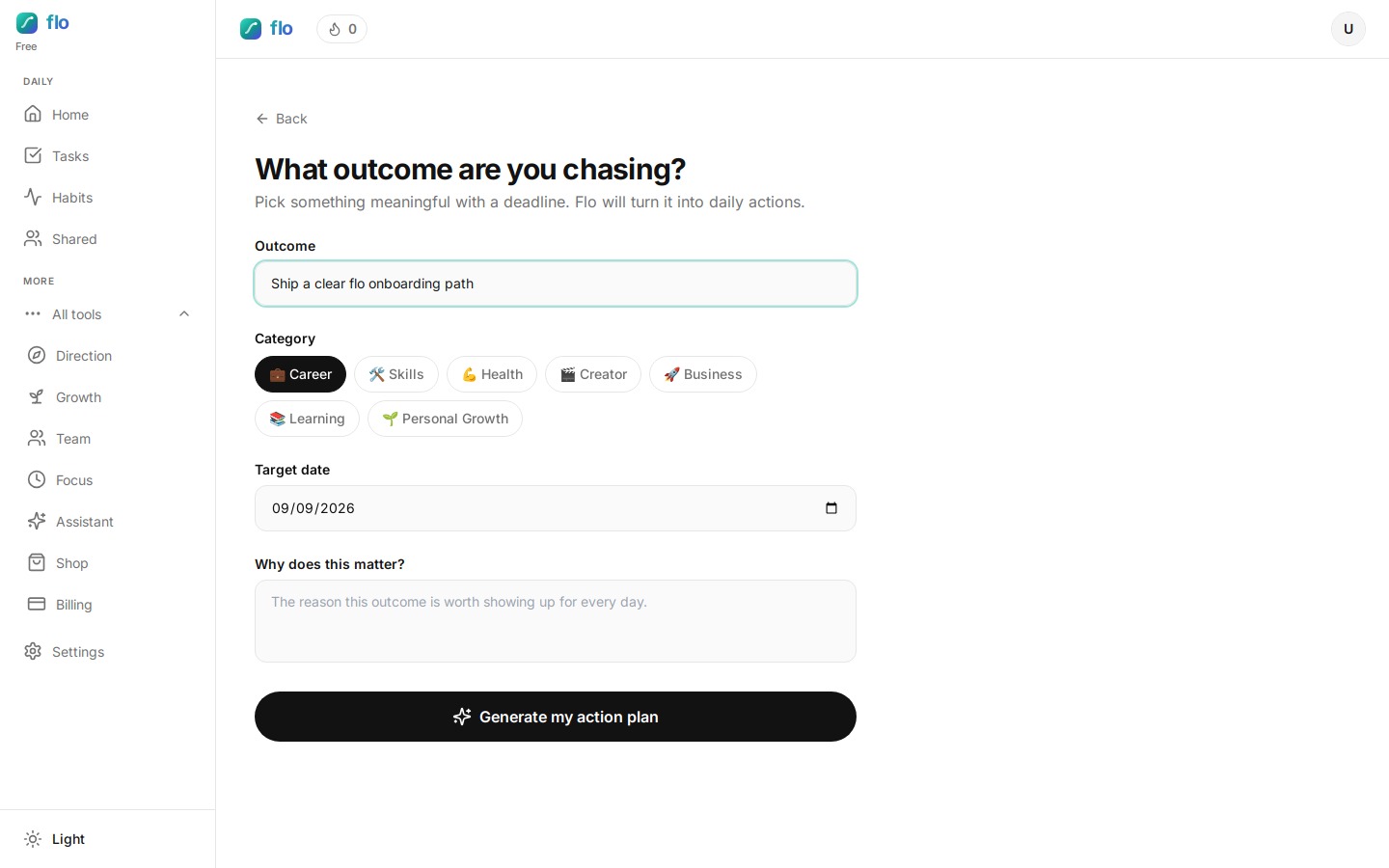
Direction turns a longer goal into weighted daily habits. Create an outcome, pick a category and target date, write why it matters, then generate your action plan. Check in as you show up. Example: “Ship the portfolio by June” becomes a Direction outcome; today’s tasks are the proof you showed up.
Grow the year when you’re ready
Growth holds yearly goals, reading, diary prompts, resources, and an optional public portfolio. Use it when you want the bigger picture beside your day-to-day checklist — not before you’ve captured today’s work.
Know what each plan unlocks
- Free — limited tasks/habits, join shared lists as a collaborator, AI via credit top-ups.
- Pro (~$6/mo) — more capacity, Daily Tasks with custom reset intervals, calendar sync.
- Unlimited (~$15/mo) — shared list ownership, invite collaborators, copy personal tasks into shared lists.
FAQ: getting started with a productivity system
Do I need every feature on day one?
No. A working productivity system is Tasks plus one Direction outcome. Add Growth, Daily Tasks, and shared lists only when a real friction shows up.
How is this different from a plain to-do list?
A plain list stores work. flo asks what that work is aimed at — so getting started with a to-do app does not end as another forgotten inbox.
What should I set up first if I only have ten minutes?
Sign in, add three tasks, create one Direction outcome, and link today’s first task to that outcome. That is enough to reopen tomorrow with a clear next move.